





.svg)


 Garantía de entrega




Owon
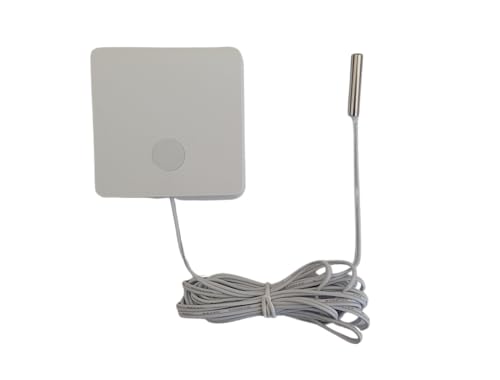
Smart ZigBee 3.0 Temperature Sensor w External Waterproof Temperature Probe
Disponibilidad
En stock
En stock
Peso con empaque
0.20 kg
0.20 kg
Devolución
Sí
Sí
Condición
Nuevo
Nuevo
Producto de
Amazon
Amazon
Sobre este producto
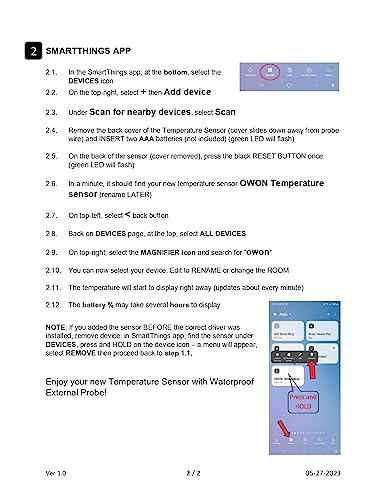
- [WORKS WITH NEW SMARTTHINGS] Easy setup to work with latest SmartThings Edge (install instructions BELOW and in images, 2 pages)
- [REMOTE MONITORING & ALERTS] Remotely monitor temperature and get ALERTS using SmartThings routines
- [WIDE APPLICATIONS] Wireless temperature sensor with external waterproof temperature probe to monitor refrigerator, freezer, fish tank, more. Temperature probe range -40 F to +257 F (-40 C to +125 C)
- [LOW POWER CONSUMPTION] Temperature sensor uses an extra low power consumption ZigBee 3.0 wireless module and features a long battery life (uses two AAA batteries not included)
- [LONG BATTERY LIFE] The ZigBee Sensor uses an extra low power consumption ZigBee wireless module, and features a long battery life
$119,13
49% OFF
$61,09
IMPORT EASILY
By purchasing this product you can deduct VAT with your RUT number
$119,13
49% OFF
$61,09
Envío gratis
Llega en 5 a 12 días hábiles
Con envío
 Tienes garantia de entrega
Este producto viaja
de USA ![]() a tus manos en
a tus manos en
![]()
 a tus manos en


Compra protegida
Disfruta de una experiencia de compra segura y confiable
![]() Garantía de entrega
Garantía de entrega
Con Tiendamia todas tus compras cuentan con Garantía de Entrega o devolución total de tu dinero.
Compras 100% seguras y garantizadas, para que pidas lo que sueñas y lo recibas del mundo a tu puerta.
Tarjetas de Débito y Crédito

Visa

Mastercard

American Express

Dinners

Discover

Alias
Pagos a través de PayPal
Compra procesada en dólares con dinero en cuenta o tarjetas internacionales.

PayPal
Conoce más detalles
(SEE PRODUCT IMAGES FOR INSTRUCTIONS WITH IMAGES, 2 PAGES) INSTRUCTIONS- ADDING ZIGBEE TEMPERATURE SENSOR TO SMARTTHINGS ATTENTION – PLEASE FOLLOW THESE STEPS TO PROPERLY ADD THE TEMPERATURE SENSOR TO SMARTTHINGS DO NOT INSTALL AAA BATTERIES UNTIL INSTRUCTED 1 - INSTALL CORRECT SMARTTHINGS DRIVER 1.1. Open your web browser and go to the driver’s developer channel page: (SEE INSTRUCTIONS IN IMAGES FOR LINK) 1.2. Sign in to your Samsung account (which you use for your SmartThings Hub) 1.3. On the CHANNEL INFORMATION page, under MY HUBS, you will see your desired hub, select ENROLL 1.4. You will see the Name: CASA.IA Temperature sensor, select INSTALL 2 - SMARTTHINGS APP 2.1. In SmartThings app, at the bottom, select the DEVICES icon 2.2. On the top-right, select + then Add device 2.3. Under Scan for nearby devices, select Scan 2.4. Remove back cover of the Temperature Sensor (cover slides down away from probe wire) and INSERT two AAA batteries (not included) (green LED will flash) 2.5. On the back of sensor (cover removed), press the black RESET BUTTON once (green LED will flash) 2.6. In a minute, it should find your new temperature sensor OWON Temperature sensor (rename LATER) 2.7. On top-left, select back button 2.8. Back on DEVICES page, at the top, select ALL DEVICES 2.9. On top-right, select the MAGNIFIER icon and search for “owon” 2.10. You can now select your device, Edit to RENAME or change the ROOM 2.11. The temperature will start to display right away 2.12. Battery % may take several hours to display Enjoy your new Temperature Sensor!