


 Garantía de entrega






SKU/Artículo: AMZ-B0DPWGQ99D
DYTDIEYINGTU
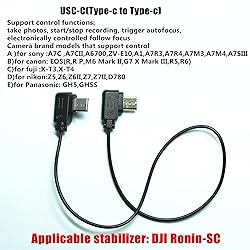
DYTDIEYINGTU for DJI Ronin -sc Multi-Function Camera Control Cable USB C Stabilizer Release Connection Cable for Sony A7C/A7CII/ZV-E10/E10II/A6700 Z6 Z7 EOS R/RP(Ronin SC -Type c)
Model:
Ronin SC -Type c
Detalles del producto
Disponibilidad:
En stock
En stock
Peso con empaque:
0.30 kg
0.30 kg
Devolución:
Sí
Sí
Condición
Nuevo
Nuevo
Producto de:
Amazon
Amazon
Viaja desde
USA
USA
Sobre este producto
- Applicable stabilizer: DJI Ronin-SC (The SC cable plug is directional, and the two ends are not interchangeable (gold plug camera). Camera control cable USB-C (Type-c to Type-c) Support control functions: take photos, start/stop recording, trigger autofocus, electronically controlled follow focus Camera brand models that support control: A )for sony :A7C ,A7CII,A6700,ZV-E10,ZV-E10II,A1,A7R3,A7R4,A7M3,A7M4,A7SIII B)for canon: EOS(R,R P,M6 Mark II,G7 X Mark III,R5,R6) C)for fuji :X-T3.X-T4 D)for nikon:Z5,Z6,Z6II,Z7,Z7II,D780 E)for Panasonic: GH5,GH5SA:Note for Sony Camera Settings " 1. Set the USB Connection function of the camera to Computer Remote Control. The specific setting method is as follows: Old menu: Settings → Select USB connection → Select Computer Remote → On. New menu: Network → Transfer/Remote → Computer remote control function → Open; Or network → Computer remote control function → Open. 2. When using the electronic focus function (to purchase a DJI focus controller separately), please set the lens to AF (auto focus) mode and the body to MF (manual focus) mode, otherwise the electronic focus function cannot be used. 3. The 5-axis anti-shake function of the camera body will be automatically turned off. When paired with a lens with anti-shake function, the lens anti-shake function is not affected. 4. If you want to use the camera playback function normally, please set the still image saving destination in the computer remote control function to computer + shooting device or shooting device only. 5. When using the photo function, in order to avoid the inconsistency of the number of photos, please follow the following method: Network → transmission/remote → computer remote control function → still image storage destination → Only shooting device. B: 1. Due to the camera system, if you need to take pictures, please switch the camera shooting mode to take pictures; If you want to record, switch the camera mode to video. 2. Due to differences in lens control logic, when using electronically controlled focus, the lens needs to select AF (autofocus) gear, and the body needs to turn off the AF Servo function. C: 1. The setting method of using the electronic focus function: open the real-time view function of the camera, switch the lens focus mode to AF (auto focus), and set the internal focus mode to AF-S. 2. The peak profile of some models can only be displayed in MF (manual focus) mode, so when using the electronic focus function of Ronin head, the peak focus of the camera will not be displayed. 3. When the video frame rate is set to 100 or above or shooting in slow motion, the camera HDMI has no output, and the hawkeye image cannot be transmitted. D: 1. Set the USB mode of the camera to PC (Tether) mode or select PC (Tether) mode in the displayed dialog box when the camera is powered on. 2. Switch the focus mode switch on the camera body to MF (manual focus), you can use the electronically controlled focus function 3. Switch the focus mode switch on the camera body to AFS/AFF/AFC, and you can trigger the automatic focus of the camera through the camera control button on the PTZ. 4. Without the use of hawk-eye image transmission, the setting method for intelligent following is as follows: AF mode → Human/animal detection autofocus (or face/eye/body detection) E: Setting precautions 1. Set PC Connection Mode of the camera to USB Auto Mode. The specific setting method is as follows: Select menu → Settings → Connection Settings →PC connection mode →USB auto mode. 2. The button function of the camera body is not supported during connection. If you need to use the button function of the camera body, disconnect the camera control cable or set the head to sleep. To switch between recording mode and photographing mode of the camera, restart the camera or set the PTZ to sleep mode. 3. Enable the Automatic Shooting for USB network Sharing function on the camera. The setting method is as follows: Select menu → Network /USB Settings → Automatic shooting of USB network sharing.
S/ 117.84
31% OFF
S/ 81.26
IMPORT EASILY
By purchasing this product you can deduct VAT with your RUT number
S/ 117.84
31% OFF
S/ 81.26
 Llega en 5 a 10 días hábiles
con envío
 Tienes garantía de entrega
Conoce más detalles
Make sure that the TYPE C camera port on the stabilizer (located next to the camera mounting plate) is used to connect the camera cable, and other USB C ports have different functions and cannot be mixed Camera cable action - Control camera action directly on the stabilizer. Without the need to press the camera To achieve the functions described in the stabilizer official, please read the details and Settings written in the product carefully The length of the cable is 35cm/13.7in. The two ends of the cable are Type c plugs, the gold plug is inserted into the camera, and the silver plug is inserted into the Ronin-SC For better compatibility with camera features, update the stabilizer's firmware to the latest version
Compra protegida
Disfruta de una experiencia de compra segura y confiable
![]() Garantía de entrega
Garantía de entrega
Con Tiendamia todas tus compras cuentan con Garantía de Entrega o devolución total de tu dinero.
Compras 100% seguras y garantizadas, para que pidas lo que sueñas y lo recibas del mundo a tu puerta.
Saber más.
Visa

Mastercard

American Express